 English (USA)

SMART Board GX series teacher guide
Picture in Picture (PIP) Widget
Lorem Ipsum is simply dummy text of the printing and typesetting industry. Lorem Ipsum has been the industry's standard dummy text ever since the 1500s, when an unknown printer took a galley of type and scrambled it to make a type specimen book.

Instructional Ideas
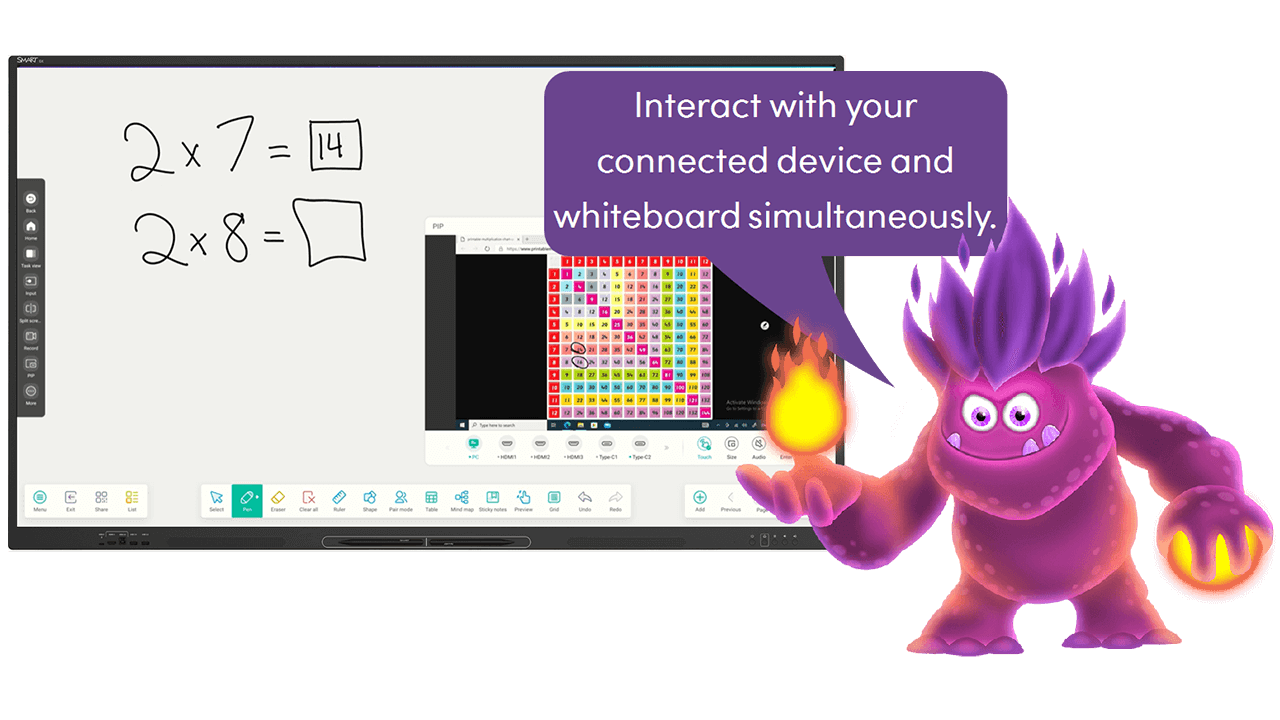
Engage students with lesson content within the whiteboard app, and use the picture-in-picture widget to bring in your connected computer with additional lesson content (such as a video, student work, and more).
Extend student learning with SMART Ink when using a connected computer within the whiteboard app. Students work simultaneously within the whiteboard app and with SMART Ink tools on the computer input to encourage collaboration.
Enhance student brainstorming and encourage peer feedback by allowing students to share their work from their connected device while documenting peer feedback in the whiteboard app.
Picture in Picture (PIP) widget steps
-
Open the Picture in Picture (PIP) widget
Show your connected computer’s desktop in a smaller floating window you can position anywhere on the display’s screen. The floating window appears on top of open apps, allowing you to continue viewing your computer’s input while interacting with other apps or websites.
Tap in the toolbar menu, and then tap .
The PIP widget opens and you can select an input, resize the floating window, and change or mute the input volume.
If your connected computer also has a USB cable connected for touch, you can control this input via touch, directly within the PIP window.
-
Close the Picture in Picture (PIP) widget
Close the PIP widget by tapping .
More teacher guides you may be interested in


